|
|
 GPS Route Viewer GPS Route Viewer
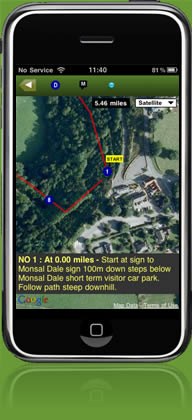
This page provides some simple instructions on using the GPS Route Viewer feature on Good Run Guide Mobile. The GPS Route Viewer helps you to find your way around a new route, providing a position-enabled route map and any additional directions that are available.
Follow a New Route
- Login to Good Run Guide Mobile.
- Go to the Routes and Races menu and select the Route you wish to follow. Click Route Map to view the route in the GPS Route Viewer.
- An overview map of the route will initially be shown.
- The map includes milemarkers (in black)
 and markers showing the locations of additional directions (in blue) and markers showing the locations of additional directions (in blue)  . These can be hidden (and redisplayed) by clicking on the relevant symbol in the action bar at the top of the map. . These can be hidden (and redisplayed) by clicking on the relevant symbol in the action bar at the top of the map.
- Click on the current position icon
 to begin tracking your current position. Once your position has been determined (this may take a few moments depending on signal reception), the map will zoom in to show where you are. Clicking this again will turn off the tracking and redisplay the route overview map. to begin tracking your current position. Once your position has been determined (this may take a few moments depending on signal reception), the map will zoom in to show where you are. Clicking this again will turn off the tracking and redisplay the route overview map.
- Once you get to the start of the route, click on the direction icon at the start for details of where the route starts. Click the directions text to hide it. You can look at any of the directions around the route in this way.
- As you run around the route, if you are not sure where to go, stop and check your position on the map again. It may take a few moments to obtain your latest position if your phone has locked while you were running. Switching to satellite map view may help identify local landmarks in some cases.
NOTE: It is dangerous to look at your mobile phone while running so please stop if you need to check that you are on the correct route.
Locating your Position
Unlike our GPS Stopwatch, where high accuracy levels are required, the GPS Route Viewer can show your position based on less accurate location readings that are available from mobile phone signals. This means that it should pick up your current location quite quickly. Where a GPS signal is available though, this will be used to provide a more accurate position fix.
The accuracy of the location signal will depend on the quality of the GPS and mobile signals where you are. If you are having problems locating yourself with the GPS Route Viewer, look at the following tips:
- Check that Location Services is turned on (in General Settings on the iPhone).
- Check the Enable 3G is turned on (in General, Network Settings on the iPhone).
- To get a GPS signal, you need to be outdoors with a clear view of the sky (GPS needs visual contact with at least 3 satellites) and preferably well away from buildings as these can cause signal reflections leading to reduced accuracy.
- Try turning off WiFi off in your phone's Settings as it has been reported that this can sometimes improve GPS reception.
- Ensure your battery is charged up – less accurate locations may be sought to conserve battery power if the battery level is low.
- Try powering your phone off and on before using it if you still get problems.
|

 Good Run Guide - The UK's Leading Independent Running Website


